A LITTLE STRUCTURE. A LOT OF CREATIVITY.
Grid Drawing Tools for Drawing on Paper
Create a reference and a matching blank grid, sized for your paper.

Grid Drawing Tools Workspace
Start with a photo, make it your own.
Upload an image
01Grid style
Paper setup
03Grid dimensions: 160 × 224 mm
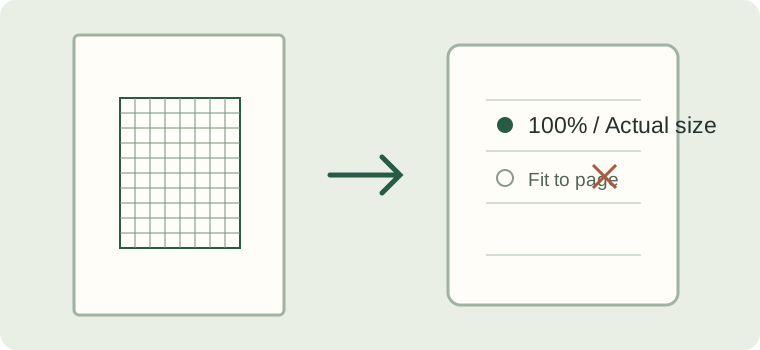
Print the PDF at 100% or actual size. Do not select fit to page.
Drop an image here to replace it
Create a Matching Paper Grid with Grid Drawing Tools
- Upload an image, or use the sample. Set the same number of rows and columns for both grids.
- Choose your paper size, orientation and unit. Set the reference cell size and the drawing paper cell size.
- Choose a minimum margin and whether to keep the entire image with whitespace or fill the grid and crop it. Check both previews.
- Select the reference page, the blank grid, or both. If either selected page exceeds the printable area, adjust the cell size, margin or paper size, then download the PDF.
What the Settings Mean
Rows and columns define matching coordinates; the two cell sizes control the physical size of each grid. The margin reserves space around the grid and labels. Keep entire image adds whitespace; fill and crop trims the edges without stretching.
Enlarge Drawings with Grid Drawing Tools
For an 8-column × 10-row grid, 1 cm reference cells make an 8 × 10 cm grid. Using 2 cm cells on the drawing paper makes a 16 × 20 cm grid: twice as wide and twice as tall. Keep the same rows, columns and coordinates.
Use Grid Drawing Tools to Print at Actual Size
In the print dialog choose 100% or Actual size. Fit to page can change the cell size. Check the paper and orientation, allow for your printer’s unprintable edges, and measure a printed square before drawing.